

 Download(1016.98KB)
 6.0.5
6.0.5
 186.06KB
 Version
1.0.23
Version
1.0.23
 Updated on
November 29, 2025
Updated on
November 29, 2025
 Category
Business Office
Category
Business Office
 Size
1016.98KB
Size
1016.98KB
7.3
Speech-to-text assistant program for PC
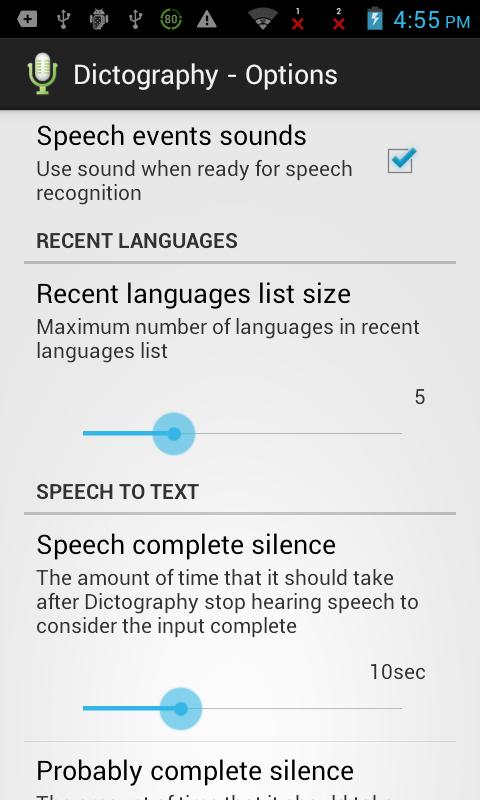
Dictography allows you to use Android Speech-to-text features for entering text into Windows PC applications.
Requirements: your smartphone or tablet need to be connected over Wi-Fi to the network to which your PC is connected.
Important: You will need to install "Dictography for Windows" on the your Windows PC. You can download Dictography for Windows at http://dict-o-graphy.com
How to use the Dictography for speech input to the PC:
- Install the Dictography on the your Android smartphone;
- Install a companion software Dictography for Windows on the your PC;
- Run Dictography on the Android and on the PC;
- Select "Start speech listening" item in the Dictography tray icon popup menu;
- Select a window into wich your want to enter the text, set the text cursor (caret) into an appropriate position;
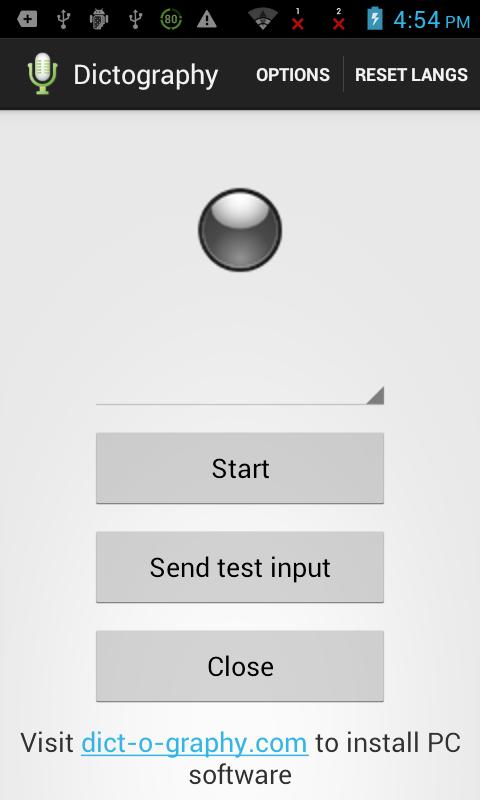
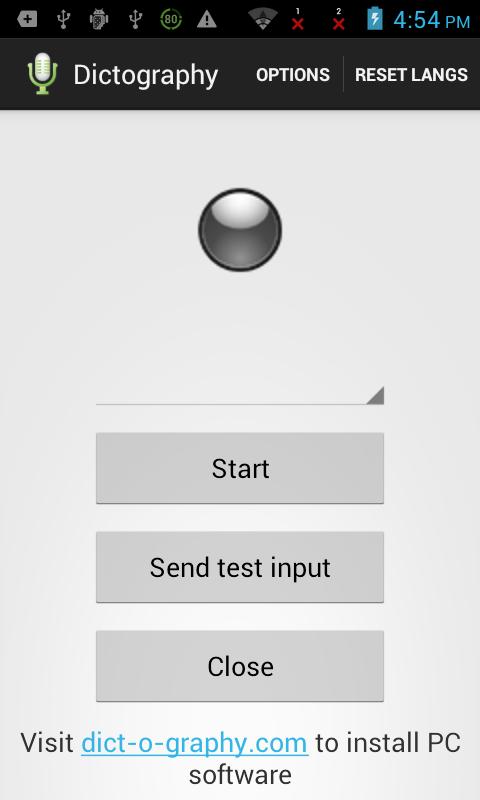
- To test connection tap the "Send test input" button in the Android Dictography. If all is Ok, the test message will be entered and the informational balloon pop ups;
- Tap the "Start" button to start speech input.
How to input speech:
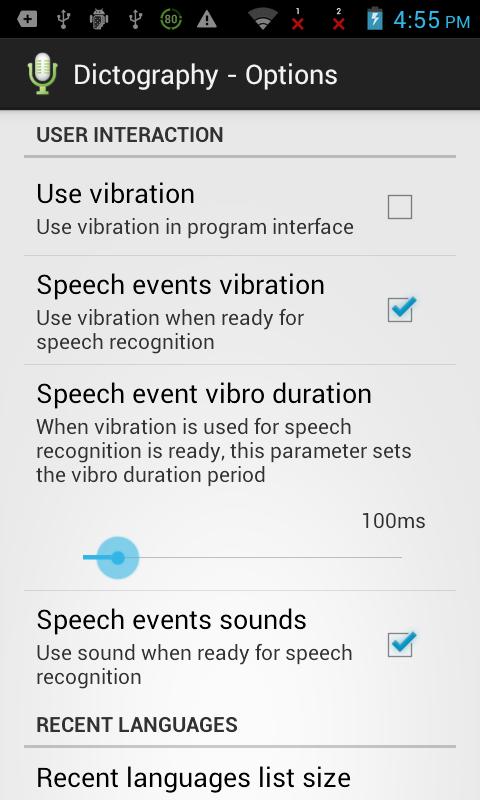
- When the Android Dictography is ready for the speech input, it signals about it with the sound and/or vibration (this can be customized in options);
- Speak phrase by phrase, making a pauses between them;
- Start an each next phrase after signal.
Enjoy with convenience of speech-to-text input!
 Similarity
January 21, 2026
January 21, 2026
January 21, 2026
January 20, 2026
January 20, 2026

January 19, 2026

January 19, 2026

January 19, 2026
January 19, 2026
January 19, 2026
January 19, 2026
January 18, 2026